
Cliparr is built for creating short clips from longer videos, but the same browser export engine also works well as a simple video converter. If you just want to convert a full video, compress an MP4, remux an MKV, make a WebM for the web, or turn a short clip into a GIF, the full editor can be more interface than you need.
That is why I pulled the export flow into Cliparr Convert, a free browser video converter based on the Cliparr UI. Unlike the full self-hosted Cliparr app, Cliparr Convert does not require running a server for Plex or Jellyfin. It runs entirely in your browser, does not require an account, and is designed for quick one-file conversions without sending your media to a remote upload service.
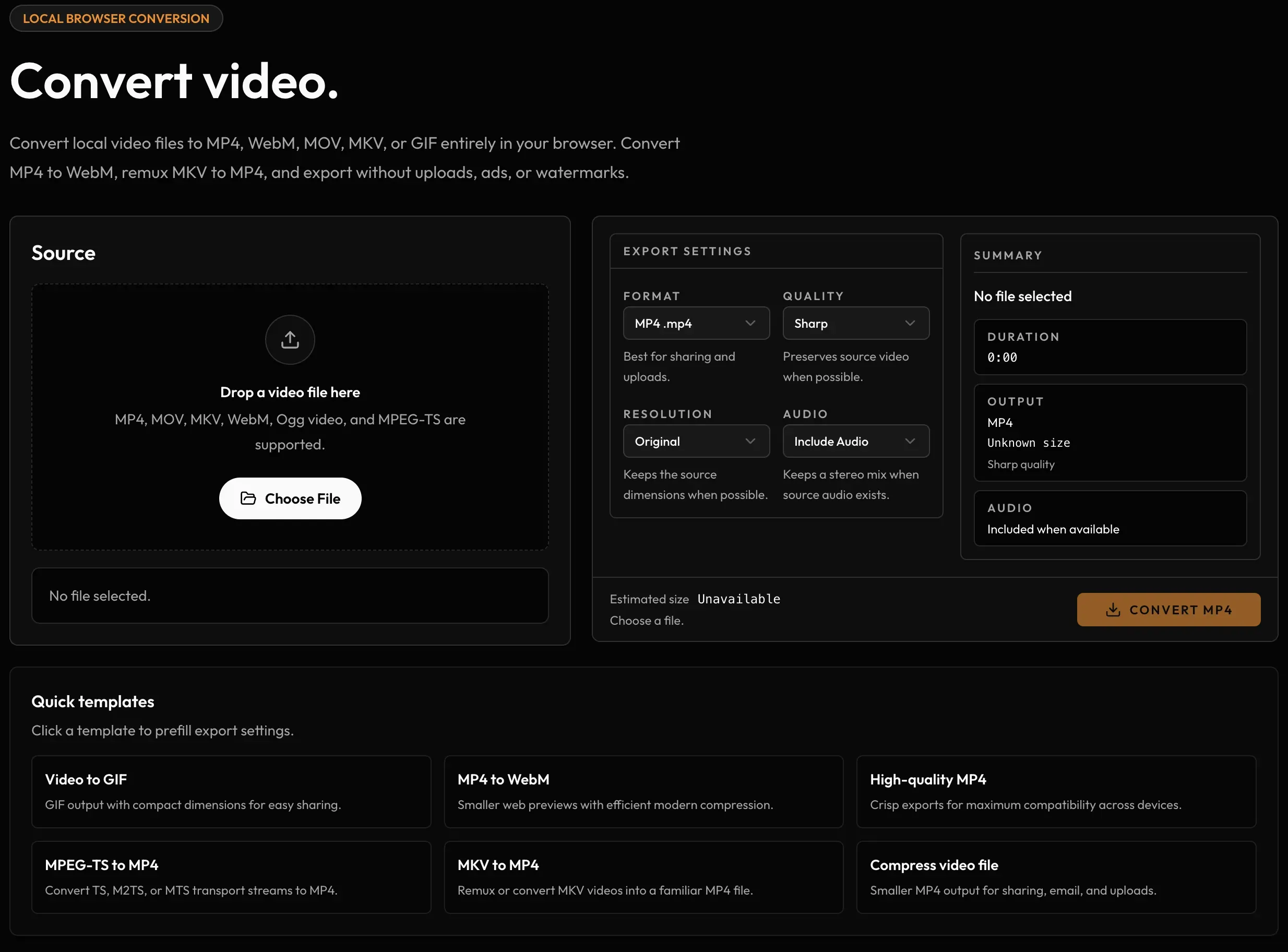
Powered by Mediabunny and gifenc, Cliparr Convert supports the same browser-side export flow as the full app, just without the timeline editor, Plex setup, Jellyfin setup, or self-hosted Cliparr server around it.
What Cliparr Convert Is Good For
Cliparr Convert is best for the everyday conversions people usually reach for a quick browser video converter to handle:
- Convert MKV to MP4 for wider playback compatibility.
- Compress MP4 files by lowering quality, resolution, or bitrate.
- Export WebM files for websites and browser-first workflows.
- Convert short videos to GIFs when a platform still needs GIF output.
- Remux compatible media into a new container without a full video re-encode.
- Convert local files without uploading them to a third-party service.
The converter is intentionally focused. It is not a batch transcoding farm, cloud editor, or replacement for a full desktop tool like HandBrake or FFmpeg. It is meant for fast, local, single-file conversions when opening a full editor would be overkill.
How To Convert A Video In Your Browser
The workflow is short:
- Open Cliparr Convert.
- Choose a local video file from your device.
- Pick an output format: MP4, WebM, MOV, MKV, or GIF.
- Adjust quality, resolution, audio, and metadata options if needed.
- Export the converted file from your browser.
For compatible inputs, Cliparr Convert can avoid unnecessary work by copying streams into a new container. When you choose smaller output settings, different codecs, or GIF output, the browser performs the transcode locally.
Convert MKV To MP4
MKV is flexible, but it is not always the easiest format to share or play on every device. If the source tracks are compatible with MP4, Cliparr Convert can package them into an MP4 container without forcing a full visual quality loss. If the tracks need conversion, the browser export pipeline can re-encode them into a more compatible MP4.
This is useful when you have a local MKV that plays fine on your desktop but needs to work in a browser, mobile app, chat client, or social platform that expects MP4.
Compress MP4 Files Locally
Cliparr Convert can also shrink large MP4 files. The most useful controls are output quality, resolution, and audio settings. Lowering resolution from a large source, choosing a more compact quality preset, or reducing audio bitrate can make a file easier to upload or share.
Because the work happens locally, compression speed depends on your browser, device, source file, and chosen export settings. For many quick jobs, that tradeoff is worth it because the original file stays on your machine.
Make WebM Files For The Web
WebM is a good fit for browser-native video, demos, and lightweight web assets. Use Cliparr Convert when you want a web-friendly output from a local source without opening a full video editor.
If you are preparing media for a website, test the final file in the browser targets you care about. MP4 remains the safer compatibility choice, while WebM can be useful when file size and web delivery matter.
Convert Video To GIF
GIF support is still in Cliparr Convert because some places still expect it, even though MP4 or WebM is usually a better modern choice. For short clips, GIF export can be convenient for chat tools, issue trackers, documentation, or older platforms that do not handle video embeds cleanly.
Keep GIFs short. They can grow quickly, and they do not preserve quality as efficiently as video formats. If a platform accepts MP4 or WebM, use those first.
Privacy And Offline Behavior
Cliparr Convert works with local browser APIs, so selected files are processed on your device instead of being uploaded to a conversion server. That makes it a good fit for personal videos, private recordings, drafts, and quick one-off conversion jobs where you do not want to hand the source file to an ad-supported upload site. The website hosts the interface, but the media conversion itself runs in the browser.
The tool can also be installed as a Progressive Web App, which makes it faster to reopen and easier to keep nearby. Browser support still matters, especially for advanced video encoding features, so see the browser support notes if an export option is unavailable.
Why GIF Export Took Extra Work
In version 1.1.0 of Cliparr, I added GIF export support. That same code is now powering GIF output in Cliparr Convert.
Before adding GIF support, it was important to produce good-looking GIFs that felt worth it for what is essentially a legacy format. When you can post an MP4 or WebM, you should, but there are still some platforms where GIFs are the only practical option.
Understandably, Mediabunny, the core media library behind Cliparr’s browser exports, didn’t support GIF output, and the native JavaScript options I found just didn’t produce GIFs I was happy with.
Eventually I discovered the Rust-based gifski library, which produced beautiful GIFs, but for a number of reasons, it was not easy to get working with Cliparr and was not a good fit for this project anyway.
Among many other things gifski does, the most impactful for my tests was a dithering option to reduce banding. I went back to the best JavaScript option I had found, gifenc, but the project had not been updated in years and its README explicitly pointed out that dithering was not supported.
So, with the help of ChatGPT Codex, I forked the repo, updated it to a modern TypeScript codebase, and added basic dithering support, which made a huge difference in quality right away.

Don’t worry, I did send over a patch with the dithering support to the original repo. We’ll see if it gets merged. If you want to check it out yourself, you can find the fork with the dithering support on GitHub.
You can also check out the benchmarking page where you can compare the performance and quality of different options for creating GIFs. You’ll see I attempted adding temporal dithering, but to my eye it just looks a little worse.
Try The Converter
If you are looking for an easy way to convert video files, compress MP4s, convert MKVs, create WebMs, or make higher-quality GIFs locally, try Cliparr Convert. For clipping videos from Plex, Jellyfin, or local files, start with the full Cliparr getting started guide.